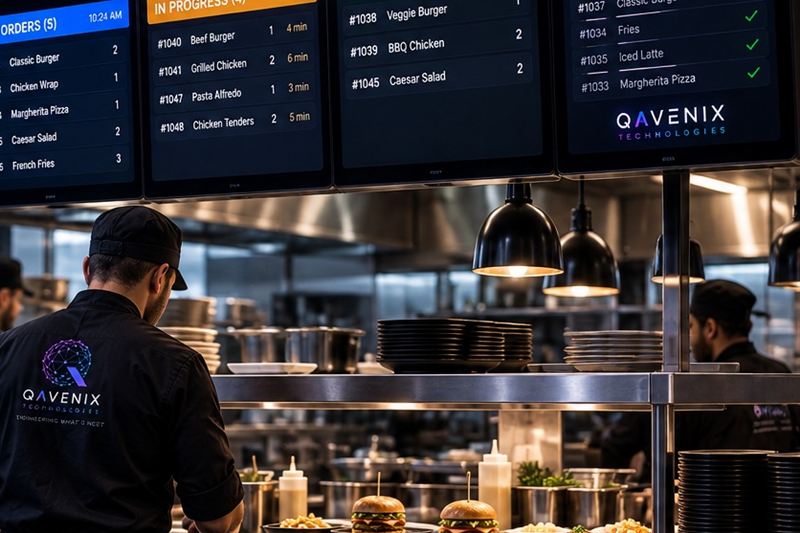
A kitchen display system (KDS) replaces printed kitchen tickets with screens at each prep station. Every order appears the moment it is placed at the counter, a kiosk or the drive-thru, goes only to the stations that prepare it, and carries a timer that shows whether it is on time. When an item is done, the cook bumps it off the screen and the order moves on to the pass, to expo and finally to the customer's order-ready board.
Most kitchens in Egypt still run on a printer and a rail of paper tickets. That works on a quiet weekday afternoon. It breaks on a Thursday night, when the counter, delivery tablets and a drive-thru lane fire orders at the same time, tickets curl under the heat lamps, and the grill cook is reading a modifier printed in tiny type. This guide covers what a KDS actually changes, how it compares to a printer, the numbers worth tracking and what an Egyptian kitchen needs from the hardware.
Where paper tickets fail
- Buried tickets - a ticket that slips behind another one is an order nobody is cooking, and nobody notices until the customer asks.
- No sense of time - paper cannot tell the grill that one order has waited fourteen minutes. Cooks work through the rail in the order tickets arrived, not in the order customers are waiting.
- Missed modifiers - "no onion, sauce on the side" printed on thermal paper and read in a hurry is where most remakes begin.
- One ticket, many stations - either every station receives every ticket and has to find its own items, or someone splits tickets by hand at the busiest moment of the night.
- No record - when service was slow, nobody can say which station held it up, because paper keeps no data.
What a KDS changes, station by station
Routing: every item to the station that makes it
Each menu item is assigned to a station once, in the POS menu setup. Burgers go to the grill, fries to the fryer, shawarma to the shawarma station, drinks to the bar, and the complete order goes to expo. Each cook sees only what they make, so nobody has to search a long ticket for their two lines.
Timers and colour ageing
Every order shows how long it has been waiting and changes colour as it approaches its target time. A simple rule works in most kitchens: green while on track, amber at about three quarters of the target, red once it is late. The kitchen stops cooking in the order tickets arrived and starts cooking in the order customers have been waiting.
Bump, recall and meal grouping
When an item is ready, the cook bumps it with one tap or a bump bar. An order bumped by mistake can be recalled. Combos stay grouped, so the burger, fries and drink of one meal reach the pass together instead of at three different moments.
Ready states that reach the customer
When expo marks an order ready, the status can flow straight to a customer order-ready board. The pickup area keeps moving and nobody has to shout order numbers over the dining room.
A live view of the kitchen's load
At peak, the shift lead can see which station is overloaded at a glance and move a cook before the backlog builds, instead of finding out from complaints twenty minutes later.
Kitchen printer or kitchen display?
| Kitchen printer | Kitchen display system | |
|---|---|---|
| Order timing | None on the ticket | Live timer and colour on every order |
| Routing | Manual, or one printer per station | Automatic, item by item |
| Modifiers | Small print, easy to miss | Shown clearly with each item |
| Meals | Split across tickets | Grouped until they leave the pass |
| Data | None | Prep times by item, station and daypart |
| Running cost | Paper rolls, every day | Power only |
| Weak point | Jams and empty rolls at peak | Needs power and network planning |
Printers still have a place: as a fallback if a screen fails, and in very small kitchens with one cook and a short menu.
The numbers worth tracking
- Order-to-ready time - from the moment an order is placed to the moment expo marks it ready. Track it by daypart, because lunch and late night are different kitchens.
- Prep time by item - finds the single menu item that slows down every order it appears in.
- Late-order rate - the share of orders that turned red. A better daily number than an average, because averages hide the bad half hour.
- Station load at peak - shows whether you need another cook on the fryer before you buy another fryer.
- Remakes - orders cooked twice. Clear modifiers should push this down; if they do not, the problem is in the recipe or the training, not the screen.
What Egyptian kitchens need from the hardware
- Screens built for heat, grease and steam - mounted away from fryers and grills, with fronts that can be wiped down every shift.
- Bump bars on hot stations - greasy gloves and touchscreens do not mix. A sealed bump bar works better on the grill and fryer; touch works well at expo and the pass.
- A UPS for screens and network - power cuts happen. A small UPS on each screen and on the network switch keeps service running through short outages.
- Cables, not kitchen Wi-Fi - steel, steam and microwaves are hard on wireless signals. A cabled connection to each screen removes the most common cause of "the screen froze".
- Arabic and English item names - many kitchen teams read Arabic while the menu is written in English. Short, clear names in the language the cook reads remove the guesswork.
- Screens where the cook actually stands - at eye level and readable from the station, not wherever the installer found a free wall.
How to roll out a KDS
- Map every menu item to a station, including modifiers and combos.
- Set target times per category: drinks, fried items, grilled items, desserts.
- Choose screens, mounts and bump bars to suit each station's heat and space.
- Cable the network and put the screens and the switch on a UPS.
- Run screens and printers in parallel for the first days of service.
- Train each station during live service, not in an empty kitchen.
- After two weeks, read the prep-time report and fix the slowest item first.
How the KDS fits the rest of the restaurant
A KDS is only as good as the orders that reach it. Orders from the POS, self-ordering kiosks and the drive-thru should land on the same kitchen screens with no re-typing, tagged by channel, and ready states should flow back out to the customer display. Our restaurant technology stack guide shows how the layers connect.
Where QAVENIX fits
The QAVENIX kitchen display system routes every item to the right station, times and colour-codes each order, keeps meals grouped, sends ready states to customer order boards and reports prep times by item, station and daypart. It receives orders from QAVENIX POS, self-ordering kiosks and the drive-thru in real time, and our own engineers handle the screens, mounting, cabling and training.
Frequently asked questions
What is a kitchen display system?
A kitchen display system (KDS) is a set of screens in a restaurant kitchen that replaces printed order tickets. Orders appear the moment they are placed, go only to the stations that prepare each item, and carry timers that show which orders are running late.
Is a KDS better than a kitchen printer?
For most busy kitchens, yes. A printer gives each station paper with no timing, no routing and no record. A KDS routes items automatically, shows how long every order has waited, keeps meals together and records prep times. A printer still makes sense as a fallback and in very small kitchens.
Can a KDS work with my existing POS?
Only if the two are integrated, so ask that question first. Orders must reach the kitchen screens automatically from every channel you sell through. The QAVENIX KDS receives orders from QAVENIX POS, kiosks and drive-thru in real time; with another POS, test the integration with your own menu before you commit.
What happens if a screen or the network fails?
Plan for it before go-live. Cabled connections and a UPS on the screens and network switch prevent most failures, recall brings back an order cleared by mistake, and keeping one kitchen printer as a fallback means a single failed screen never stops service.